About Proposal Document
Introduction
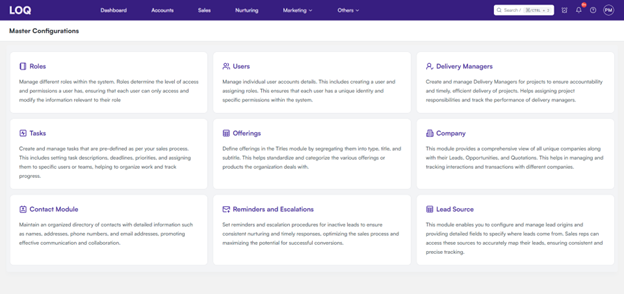
Upon hovering over the other button in navbar a sub-module named proposals will be visible.
- Proposals are documents created to present a business offer to potential clients or customers. These proposals outline the products, services, or solutions being offered, along with relevant details such as pricing, terms, and benefits.
Because these documents have commercials included it must be approved by the concerned person and then allow a user to send a proposal document to the customer.
The proposal module gives the approver user a list of all the proposals which have been requested to approve before sending the proposal to the customer. Here they have the option to approve and reject the proposal with a remark for the same
Here the approver can download the proposal document to view the document before approving or rejecting. Once they go through it, they can approve or reject and mention remarks for the same and submit.
This prompt will be received by the lead owner, who requested proposal approval. And they will be able to send the proposal to the customer.
Approver will be receiving notification as soon as the proposal requested for approval in application.
List of proposals are present shows data in detail to identify for which lead this proposal is for, following are the proposal details by which an approver can have a brief view on the same, company name, Lead Owner, Type, Title, Subtitle, Status, Version (proposal, system generated based on the changes made to a proposal), Created on and Actions.
- In the above image, by clicking on the filter button, a sidebar will be displayed on the right side of the screen.
You can filter according to the Lead Owner, Type, Title, Subtitle.
-
By clicking on the Search button on the left side of the Manage button, it will expand into a search bar where you can search according to your need.
-
By clicking the View button at the right side of the screen, a dropdown menu is displayed, containing the list form which you can select which column must be shown in the list view.
-
Total Number of records, a button displaying number of rows per page, and different pages are present in the footer.
-
By clicking on the button, you can select the number of leads displayed per page as per your convenience.
Proposal Template
There is a button named 'manage' for managing the proposal templates and by clicking on it, proposal template list view is redirected. This will help the user to map all the templates to a title, so that the sales module user can download the proposal based on the offerings in conversation with the lead.
In the proposal master list view, you can view the proposal template by downloading the proposal template and even replace the existing proposal template
-
On top right corner there is 'Add Proposal Template' button which allows user to add proposal template for the offerings which is not mapped.
-
On clicking the same a modal will open "add proposal template" where you select type and once that is selected, another field title will appear to select
-
After selecting the 'type', an input field for typing the title will be displayed on the screen to the left of the 'type' field.
-
After filling out all the required details in all the sections click on the save button.
(Note: It only supports .docx type)
- Your template will be visible in the list.